
How to Create Human-Like AI Voice on Android Phone
Android users can turn written text into natural-sounding audio using the ElevenLabs app without recording their own voices.
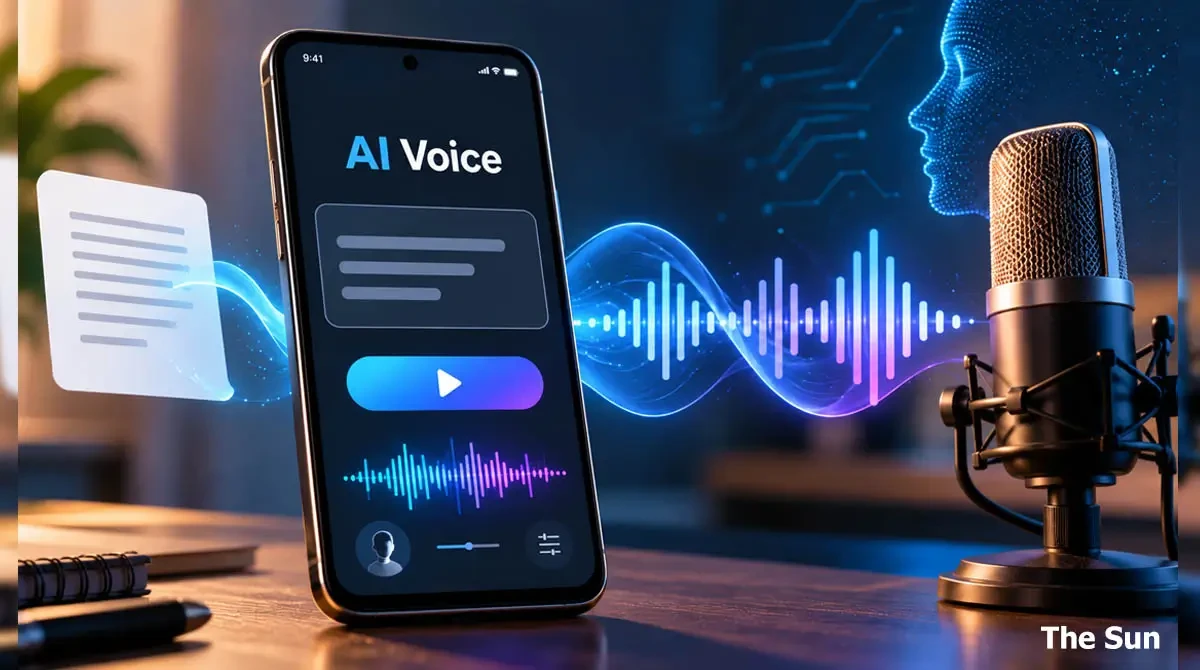
Artificial intelligence (AI) now allows users to create voiceovers from written text. Android users can use the ElevenLabs AI Voice Generator app for this purpose. The app converts text into speech that can sound similar to a human voice.
This technology can help people create video narration and other audio content. Users can generate voiceovers directly from their smartphones without recording their own voices.
How to Create an Human Like AI Voice Using ElevenLabs
Users need to install the ElevenLabs app before creating their first voiceover. The process involves selecting a voice model, choosing a voice, and entering text.
The following steps explain how to create and download AI-generated audio on an Android phone.
Step 1: Install the ElevenLabs App
First, open the Google Play Store on your Android smartphone. Search for "ElevenLabs: AI Voice Generator" and install the app.
Once installed, open the application and allow the required permissions if requested.
Step 2: Open the Text to Speech Feature
After opening the app, find the "Text to Speech" option. Select this feature to begin creating audio from written text.
The feature allows users to enter sentences or longer passages for voice generation.
Step 3: Choose the AI Voice Model
On the Text to Speech page, find the settings icon. It may appear near the bottom-left corner of the screen.
Open the settings and look for the "Model" option. If version 2 or 2.5 is selected, change it to version 3. Users can also choose the latest model available in their app.
After selecting the model, tap "Apply" to save the changes.
More Technology News: Wi-Fi not working on your laptop? 5 ways to fix it at home
Step 4: Select the Bunty Punchy Voice
Return to the previous screen and open the voice selection option. Type "Bunty" in English into the search bar.
Find "Bunty Punchy" in the search results and select it. Then tap the "Select Voice" button to confirm your choice.
The selected voice will be used to generate speech from your text.
Step 5: Enter Text and Generate Audio
Next, write the content you want to convert into audio. You can also copy existing text and paste it into the text box.
After entering the text, press the voice generation button. The app will process the text and create an audio recording.
Once the process finishes, play the audio to check the result. Listen carefully to the pronunciation and overall quality.
Step 6: Download the Generated Voice
If the generated audio meets your needs, tap the download icon. Choose an available audio or video format and save the file.
The downloaded content can then be used for video editing, narration, or other projects.
What Can You Do With AI-Generated Voices?
AI voice generation can help people who create videos and digital content. It also offers an option for users who cannot record their own narration.
For example, users can prepare written scripts and convert them into spoken audio. They can then add the recorded speech to videos or other content.
This process removes the need to record every sentence using a microphone. However, users should review the generated audio before publishing it.
Are There Any Limits on Voice Generation?
ElevenLabs may apply different limits to voice generation and downloads. These limits can depend on whether users have free or premium accounts.
Some features and voice models may also differ between account types. Users should check the options available in their app before generating audio.
The location and names of certain settings may change after app updates. As a result, users might see slightly different options from those described above.
Android users can begin by installing the app and testing a short script. They can then select a suitable voice and download the completed audio.

Sumon Das, Senior Reporter at The Sun. He has over 7 years of experience covering Education and Technology News.


Comments (0)